If you’ve been invited to a Dream Engine remote recording, you don’t need a studio or a polished performance. Choose a quiet place, use the setup we’ve tested together and bring a few points you want to explain. We’ll help with the rest.
This guide is for people appearing in an interview or presentation. If you’re organising the project, our remote video production service explains how we plan, direct and edit recordings with people in different locations.
What to expect before the session
We normally arrange a short technical check before the recording. We look at your room, camera, light, microphone, internet connection and device so there’s time to resolve problems before the interview.
Use the same setup for both calls. If you test in a quiet room with a headset, then move to an open office and use the laptop microphone, the recording will sound different. Let the producer know if your room or equipment needs to change.
During the recording, a Dream Engine producer or director will guide you. We’ll explain where to look, help with framing and delivery, and let you know when an answer is worth trying again. Tell us beforehand if you need breaks, help accessing the session or another adjustment to take part comfortably.
Set up your room, camera and sound
Choose a quiet room
A room with curtains, carpet or soft furnishings often sounds better than an empty room with hard floors and bare walls. Close doors and windows where practical. Listen for traffic, building work, air conditioning, pets, office conversations and computer fans.
Choose somewhere private enough to speak naturally. Let other people know when you’re recording and ask them to avoid interruptions.
Keep the background tidy and relevant
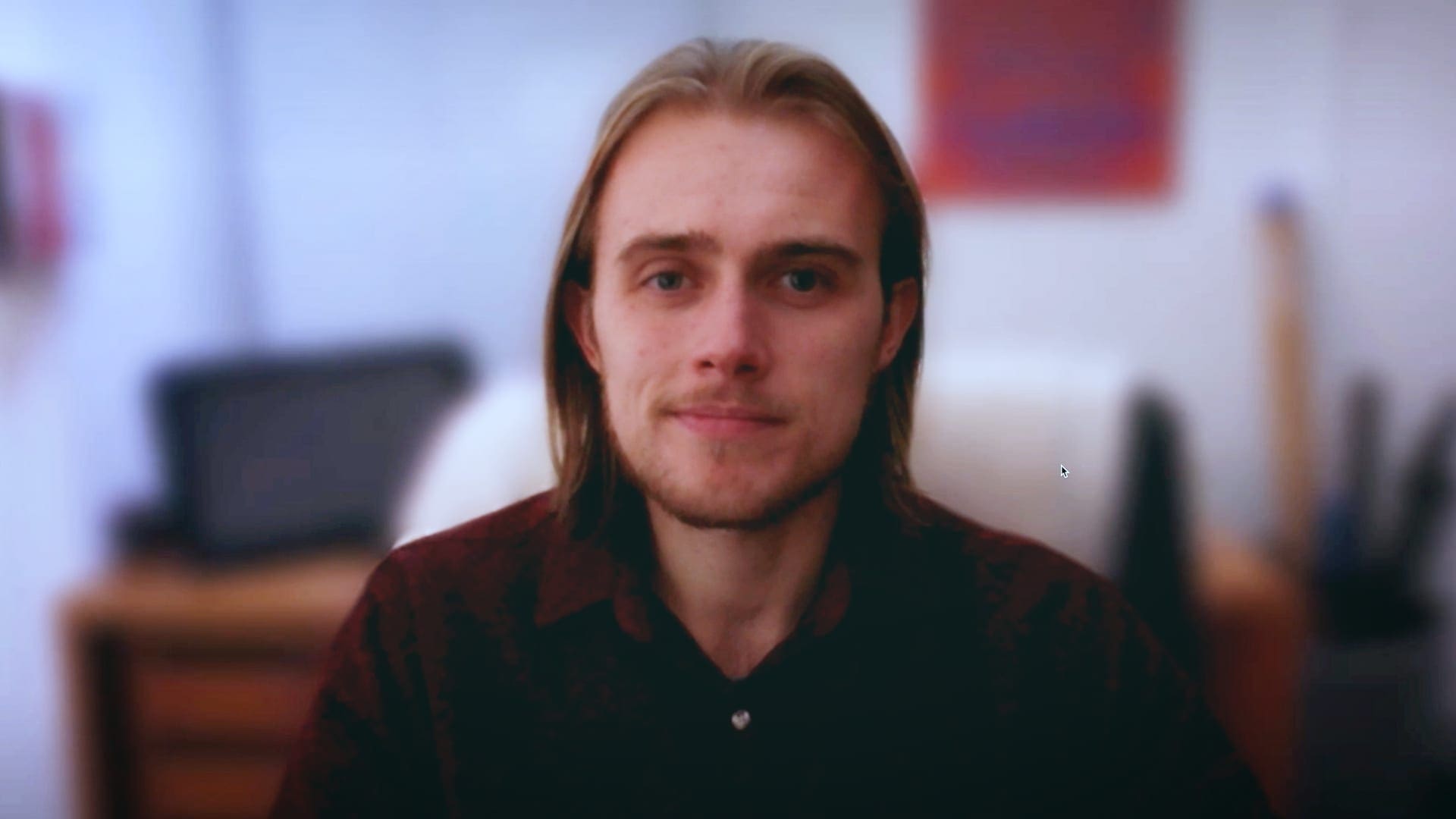
A real office or home workspace is usually suitable. Remove confidential documents, personal details and distracting clutter. Check for objects directly behind your head that look as though they’re part of you.
Leave some space between you and the background if the room allows it. Check with the producer before turning on background blur, a virtual background or an appearance filter, as these can affect the edges of your face, hair and hands.
Raise the camera to eye level
Put your computer or phone on a stable stand. A laptop stand or a firm stack of books can help bring the lens closer to eye level. Avoid holding a phone throughout the recording.
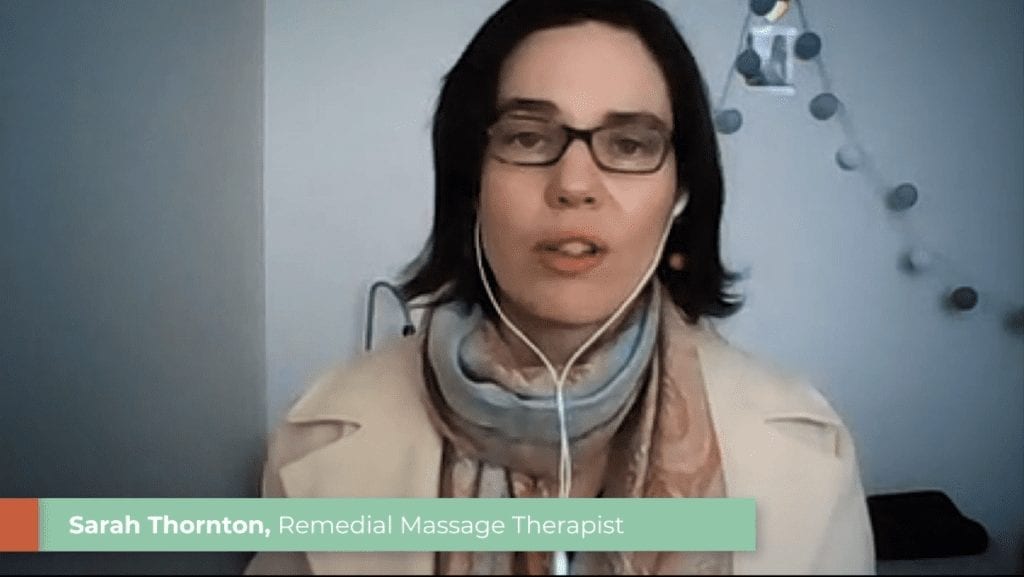
Frame from around the middle of your chest upwards, with a little space above your head, unless we ask for a different shot. Sit back enough to avoid a very close, wide-angle view of your face. If you’re using a phone, confirm whether to hold the frame horizontally or vertically before setting it up.
Light your face from in front
Face a window with soft, indirect daylight, or place a soft light slightly in front of you. Avoid a bright window behind you, which can leave your face in shadow. If direct sunlight is too strong, try a sheer curtain or move away from the window.
Think about whether the light will change during the session. We may suggest adjusting blinds or using a controllable light. Check reflections in your glasses too; a small change to the light’s position can help.
Check the sound with the microphone you’ll use
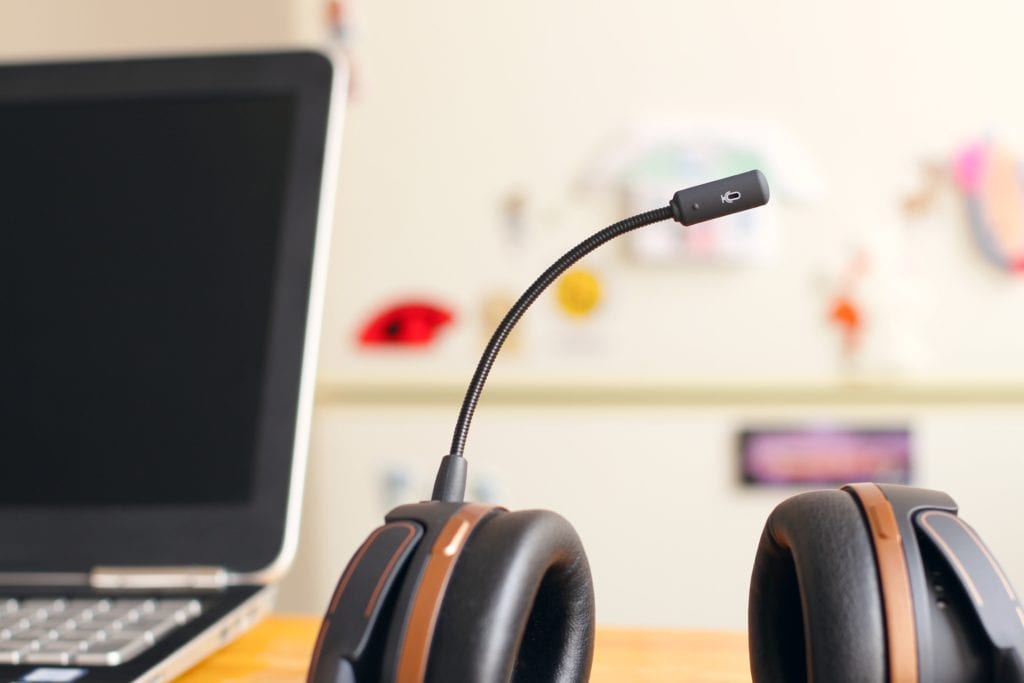
A tested external microphone or wired headset can help your voice stand out from room noise. A built-in microphone can also work in a quiet room when you’re close enough. Before buying equipment, ask the producer what would improve your particular setup.
Check that the recording platform has selected the intended microphone. Use headphones when requested to stop the other person’s voice feeding back into the recording. Avoid jewellery or clothing that rubs against a clip-on microphone, and try not to tap the desk while speaking.
For visual examples of lighting, framing and microphone placement, see our guide to improving webcam video and sound.
Check your device and recording link
Connect your device to power and use a reliable wired internet connection if available, or sit close to the Wi-Fi router. Close unnecessary applications and browser tabs, especially anything else using your camera or microphone.
We’ll send a recording link and instructions for the platform being used. For Riverside sessions on a computer, use the current version of Chrome or Edge unless we’ve agreed another supported option. Avoid a private or incognito window. A phone recording uses Riverside’s mobile app rather than a mobile browser. Check Riverside’s current device and browser requirements if you’re unsure.
Open the link during the technical check and allow the camera and microphone access needed for the session. If your work device blocks the platform or permissions, involve your IT team early so we can agree an approved setup. Tell us about any screen sharing you need to do, so that can be tested as well.
Prepare to speak naturally
For an interview, jot down the main points and one or two examples you want to cover. There’s usually no need to write or memorise complete answers. Think about what the viewer needs to understand, then explain it as you would to a colleague.
Give answers enough context to make sense if the interviewer’s question is removed in the edit. For example, “We introduced the training because new staff were getting different instructions” gives the viewer more to work with than “Yes, that was the reason”. Use your own words and real examples.
Pause briefly before answering and let the interviewer finish. If you lose your place, stop, take a breath and begin the thought again. We can record another take. The producer will tell you whether to look at the lens or towards the interviewer on screen.
For a scripted presentation, agree how you’ll read the script beforehand. Notes far from the lens can pull your eyes away from the viewer. We may break a longer script into short sections. Our guide to presenting naturally on camera has more advice on preparing your message.
Your recording-day checklist
- Join a few minutes early using the tested room, device, camera and microphone.
- Connect to power and silence calls, notifications and nearby devices.
- Wear the clothing agreed with the producer. Avoid very fine patterns, which can shimmer on camera.
- Have water and any brief notes within reach.
- Keep the full session free so you have time for pauses and another take.
- Leave time afterwards for the recording to finish uploading.
If a noise interrupts an answer, pause and let the producer guide you before starting again. If the call freezes or you lose the connection, contact the producer using the details in your invitation. Avoid repeatedly refreshing or closing the recording tab while we check what happened.
How your recording is captured and finished
Where your device and IT environment allow it, we use a platform such as Riverside to record audio and video locally on your device while we direct the live call. The files upload during and after the session, so the finished recording can look better than the live call feed.
Keep the recording tab or app open until the upload is complete and the producer says you can leave. Riverside’s guest joining guide explains the upload confirmation. If the preferred platform won’t work on your device, we may use Zoom or Teams and discuss any likely quality difference before recording.
What quality should you expect?
The camera, microphone, room and recording setup all affect the result. Local recording can reduce reliance on the quality of the live call, but it can’t fix poor lighting or a distant, echoey microphone. A professional crewed shoot normally gives us more control over picture, sound and the surrounding footage we can capture.
Careful preparation and direction can still make remote recording a useful option for interviews, testimonials, training and internal updates. After the session, we edit the selected material and add any agreed titles, supporting footage, graphics or music.
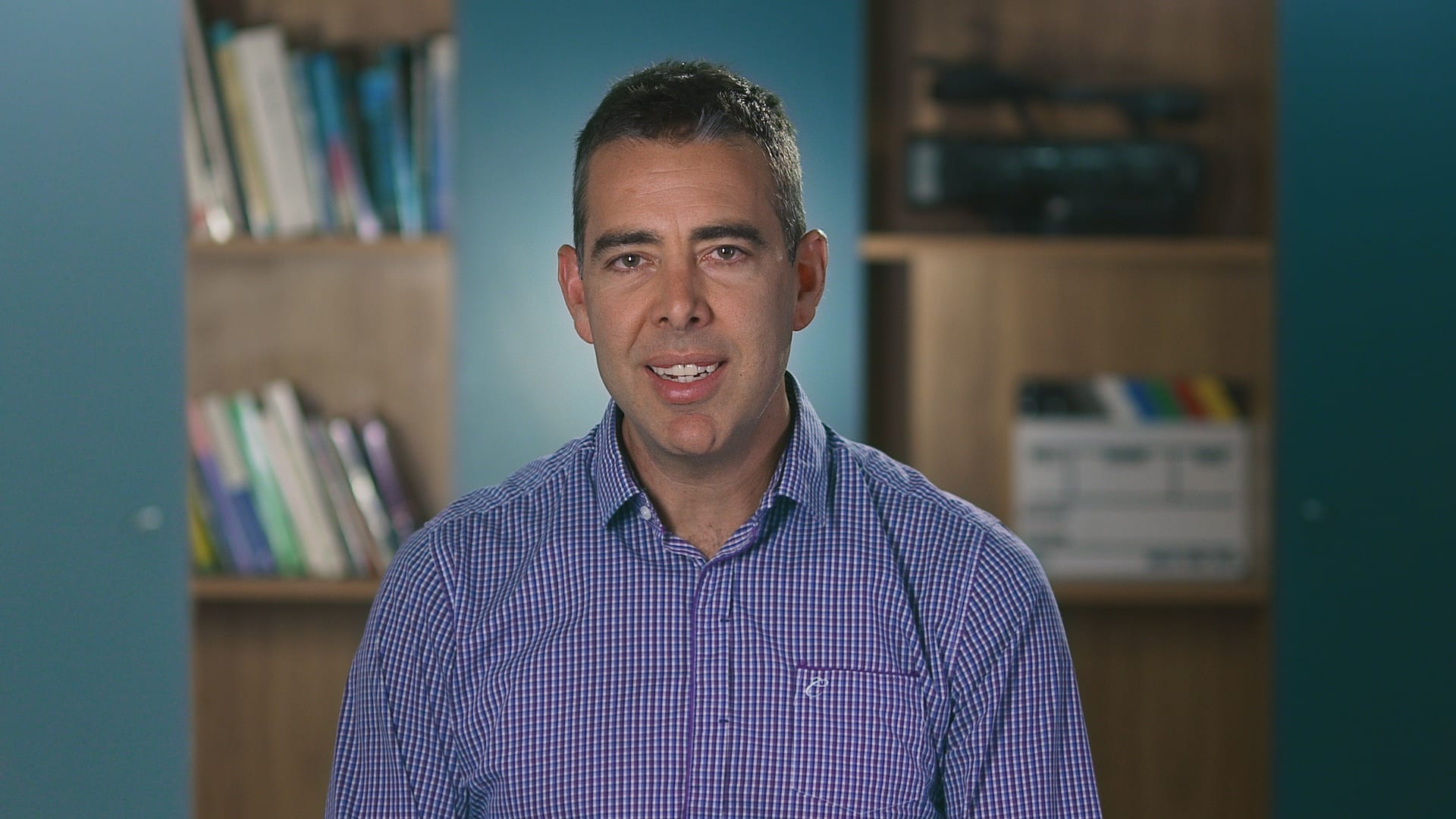
Ryan Spanger is the founder and managing director of Dream Engine, a Melbourne video production company established in 2002. Over the past two decades, he’s produced hundreds of videos for businesses, government departments, universities and healthcare organisations across Australia. Ryan specialises in helping organisations explain complex ideas through clear, engaging video content, with particular experience in corporate communications, training and education.