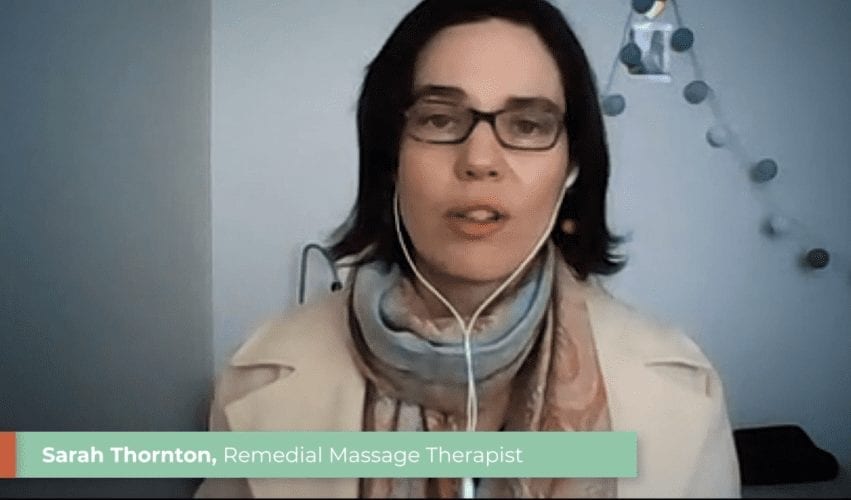
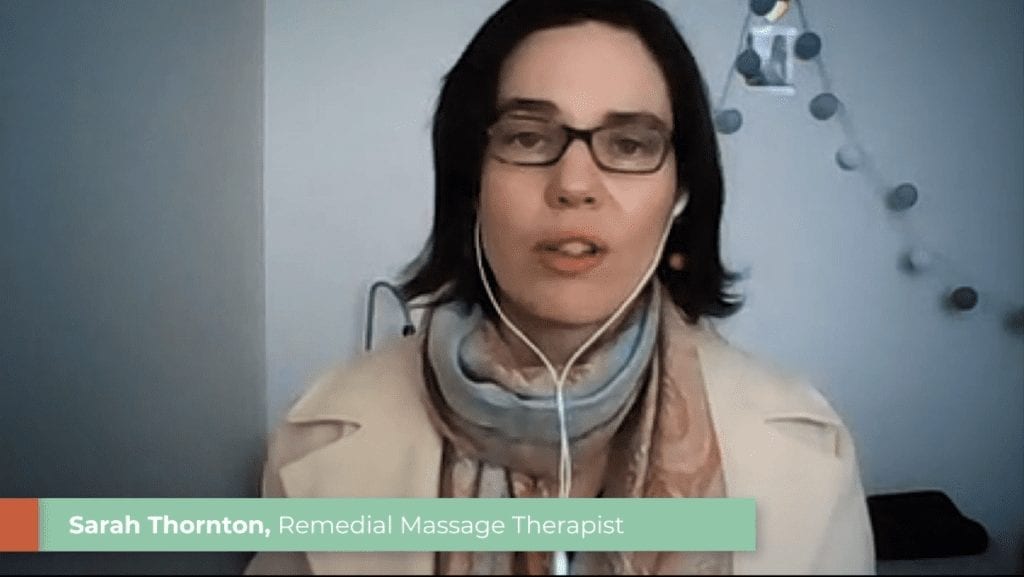
In this post, I’ll provide some quick tips for maximising the quality of your webcam videos.
We’ll be using these videos to share with your audience, so it will make them a lot more watchable if we can get the videos looking and sounding good.
By following these tips, you’ll look more professional, more in control, and more flattering. It’s the equivalent of dressing and grooming well and making a good impression. Your remote video productions will achieve a far higher quality.
Good Webcam Lighting
To make the most of natural light, sit facing a window if possible. Add additional lighting if you have it, or buy some cheap LED lights. You can even put a white image on your computer to add more light. Soft, indirect lighting is best: neither too bright nor too dark. Try to light the background if you can. Avoid filming with a window or bright light behind you. That will cause a dark image.
Improve Zoom audio quality
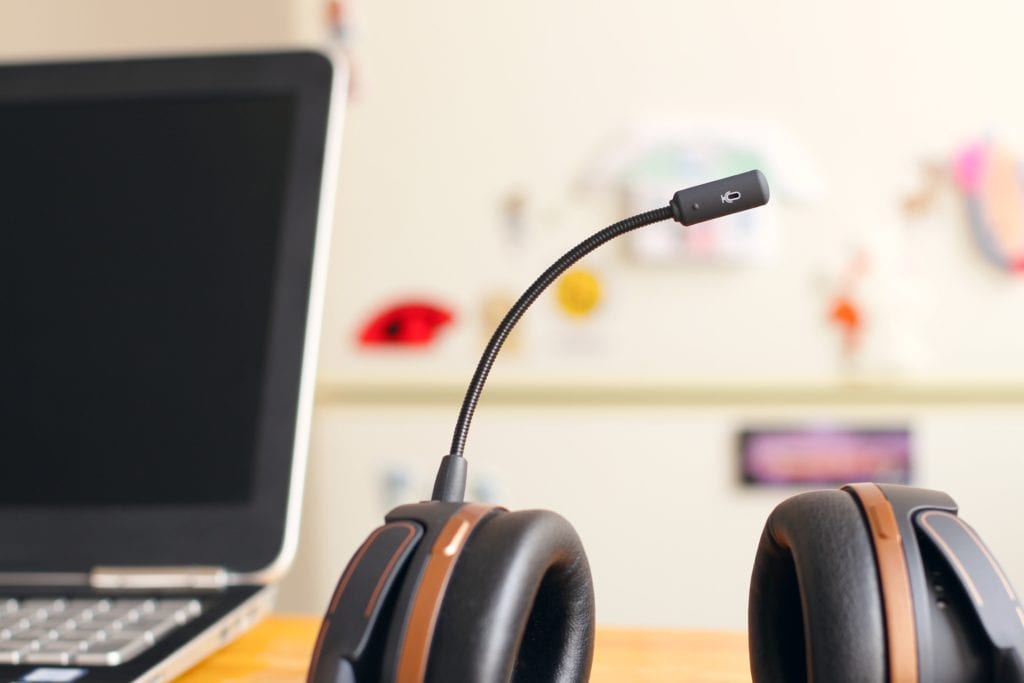
If possible, try to use an external microphone. A headset or a podcast microphone is a good choice. The built-in mic on the webcam or computer is not great, but if you have to use it, that’s okay. Just try to get the microphone as close as possible to the source of the sound, which is your mouth. This will reduce hiss or background noise.
Get your framing right
Avoid leaving too much room at the top of the frame above your head. This appears odd and doesn’t utilise the available frame effectively. At the same time, avoid framing it so that your head is touching the frame, as this also doesn’t look right. A good guide is that if you drew a horizontal line along the top third of the frame, it would intersect with your line of sight.
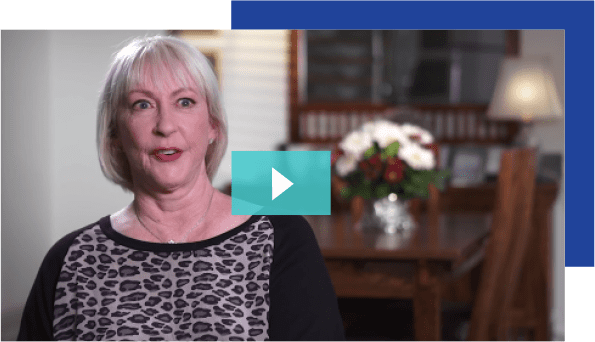
Composition
Composition means everything that people see in the frame. So, think about what people can see in the background. And what does that say about you? Try to make it look interesting, but not too busy. Make it look neat. Perhaps add something personal. And be careful you don’t have something directly behind you, so it looks like it’s pointing out of your head.
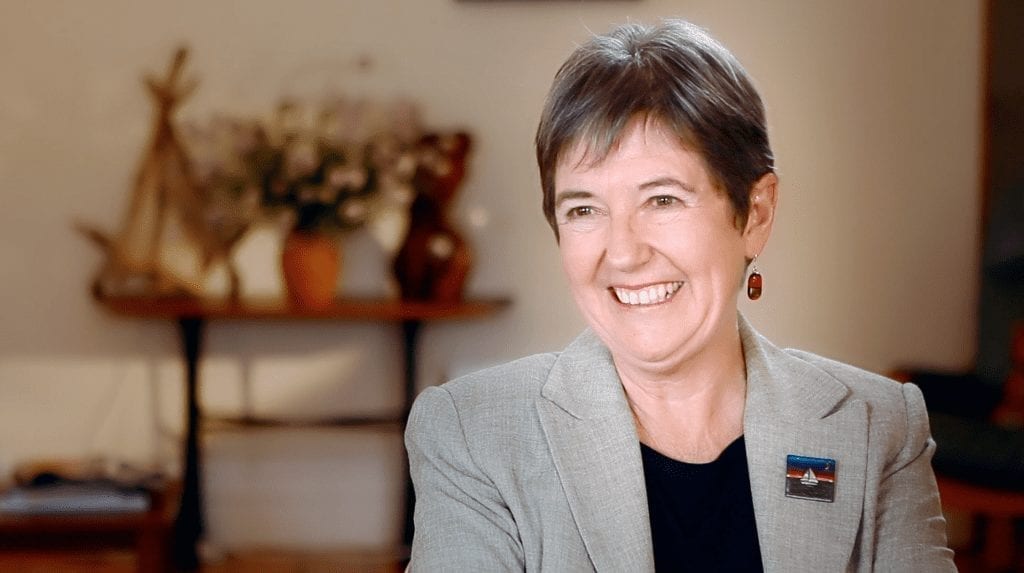
Camera Height
Try to set up your webcam so that it is at eye level. This is the most flattering angle. If the camera is too high, it makes you look small in the frame, and if it’s too low, it can be a bit unflattering.
Eyeline
Try to look directly into the camera as much as possible. This helps create engagement, connection, and intimacy, mimicking a natural conversation. Sometimes, it can be tempting to watch yourself on the screen while you’re recording. Try to resist this temptation and just look directly into the camera.
Quiet on the set
This is a filmmaking term. And something that the assistant director calls out before filming starts. Now, you’re sharing your house or office with other people. You may need to ask them in a more polite way. Not always easy.
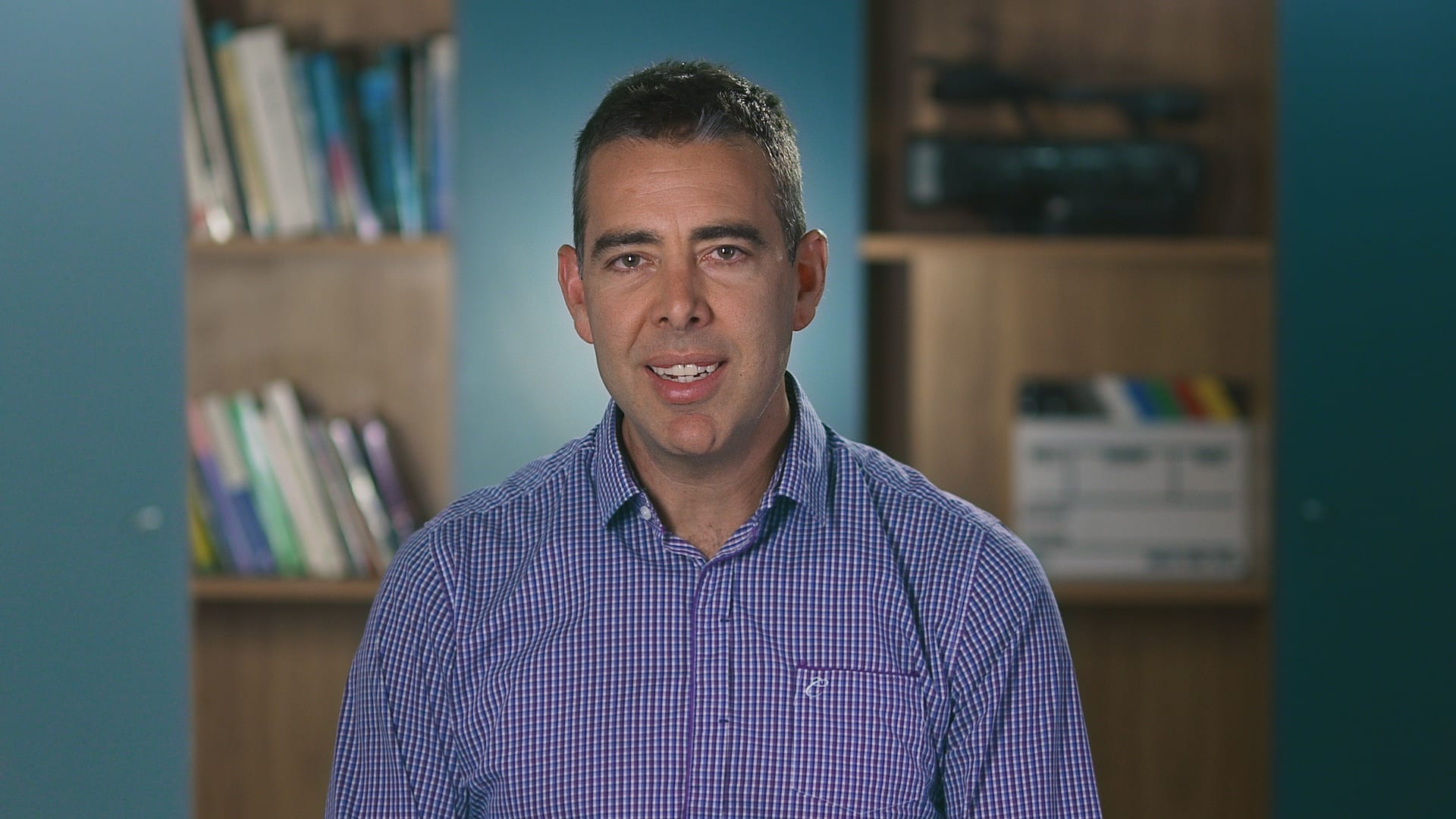
Ryan Spanger is the founder and managing director of Dream Engine, a Melbourne video production company established in 2002. Over the past two decades, he’s produced hundreds of videos for businesses, government departments, universities and healthcare organisations across Australia. Ryan specialises in helping organisations explain complex ideas through clear, engaging video content, with particular experience in corporate communications, training and education.