 03 8678 0316
In this guide
Live streaming gives people the opportunity to attend an event from wherever they are. Accessibility means designing events, information and services so people with disability can use them and participate on an equal basis with others. For a live stream, that starts with being able to register and join. It also means being able to follow what’s said, understand what’s shown on screen and contribute while the event is happening.
That matters whether you’re hosting a customer webinar, a staff update or a public forum. Some people will follow the speakers through live captions or an Auslan interpreter. Others may rely on a presenter describing a chart aloud or on being able to submit a written question. When someone has come to question a panellist, take part in training or vote at an AGM, they need access at the same time as everyone else.
For marketing and internal communications teams, the best time to consider accessibility is when you’re briefing your live streaming production team. That’s when you can find out what your audience needs, check what your organisation has committed to and include the right people and services in the budget.
Why accessibility matters to your organisation
Inclusion. An invitation gives someone the opportunity to attend. The way you run the event determines whether they can participate. At a staff briefing, for example, an employee who relies on captions needs to follow the announcement and have time to ask what it means for their role. Sending them a transcript the next day still leaves them out of that conversation. Well-planned access also helps other attendees, including people watching without sound or reading the slides on a small screen.
Australian law. The Disability Discrimination Act 1992 prohibits disability discrimination in employment and in the provision of goods and services. This can apply to a public webinar, including a free one, and to employees’ access to training and other workplace benefits. An employer may need to make reasonable adjustments so an employee can participate. If someone raises an access need, speak with them about what will work for that event.
Company policy. Your organisation may already have an accessibility policy, an access and inclusion plan, or procurement requirements that set expectations for events. Check what they say about internal broadcasts, public events and recordings. Victoria’s Transport Accident Commission, for example, included making live streaming and live captioning standard for organisation-wide, divisional and branch events and meetings as an action in its 2025–27 Access and Inclusion Plan. A commitment like that gives a comms manager a clear starting point when costing the next staff event.
When should you use live human captions instead of AI captions?
Live captions display the speaker’s words as the event happens. Good captions also identify who’s talking when it’s unclear and include sounds that help explain the exchange, such as laughter after a panellist’s remark.
Automatic or AI captions use speech recognition to turn audio into text. They can be useful for an informal team catch-up where people know each other and can interrupt to clarify a point. But expect errors. You can get a guest speaker’s surname right on the invitation, in the programme and on the slide behind them, only for the captions to get it wrong the moment the host introduces them. That’s embarrassing for the organiser and the speaker. For someone reading the captions, it can also be hard to work out who’s being discussed.
A professional live captioner listens to the event and produces the captions in real time, often using a stenography keyboard or specialist speech software. A well-briefed human captioner will generally be much more accurate, particularly with names, acronyms and specialist terminology. A study of around 17,000 English-language TV captions from 2018 to 2022 found that human captioners were more accurate on average, although some automatic systems came close. Give your captioner the running order, speaker names, pronunciations and slides beforehand. They can use that knowledge to follow a change of speaker, recognise an unfamiliar term and correct a mistake during the session.
I’d book a professional captioner for:
- Public consultations and member forums where councils, regulators or associations are asking people to question a proposal or contribute to a decision.
- Technical webinars where a university, health service or business is explaining specialist material. Getting a drug name, product term or figure wrong can change the meaning of the advice.
- Important staff announcements about pay, leave, safety or organisational change. Think about the difference between can and can’t in a briefing about eligibility.
- Events where an attendee has requested professional captions. A briefing for twelve people can warrant the same care as a broadcast to a thousand.
Booking and briefing a professional captioner also shows a stronger commitment to accessibility. You’re giving the words on screen the same care you give the sound in the room. Say so in the invitation. “A professional captioner will provide live captions throughout the presentation and Q&A” tells someone who relies on captions exactly what you’ve arranged.
How we approached the Commonwealth Ombudsman’s Complaint Handling Forum
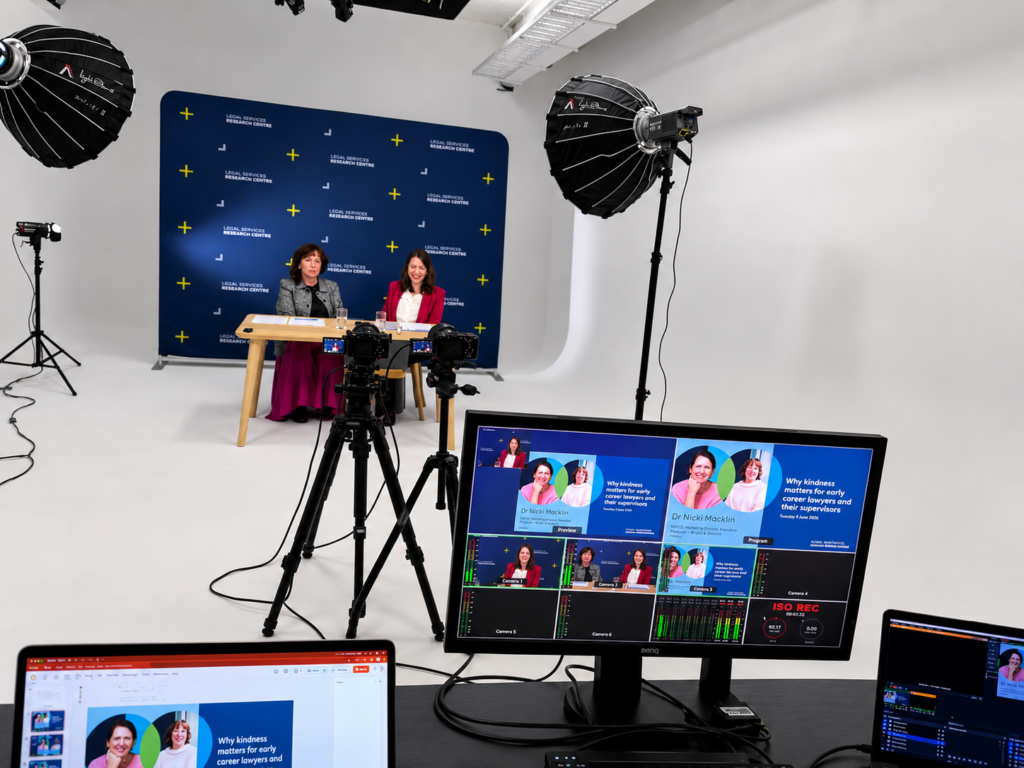
Dream Engine produced five live lunchtime webinars for the Commonwealth Ombudsman’s 2026 Complaint Handling Forum. Complaint handling professionals could hear from specialists and put questions to the speakers. The organisers told attendees there would be no replay.
We worked with professional stenocaptioners across all five sessions. They received preparation material ahead of the forum, captioned the discussions live and supplied a transcript after each session. The transcript provided a written record. The live captions let an attendee follow a specialist’s answer closely enough to ask a follow-up while that person was still on the panel.
What other accessibility options should you plan for?
Decide where captions need to appear
Closed captions can be switched on and off in the player. Open captions are part of the picture and visible to everyone. Either can be produced by a person or by software.
For a hybrid event, decide who needs captions in the venue as well as online. Captions available to someone watching the webinar at home won’t necessarily appear on the presentation screens in the room. Ask your production team to show you both views during rehearsal.
Provide Auslan interpreting where your audience needs it
For some Deaf Australians, Auslan is their first language. Following a fast panel discussion in Auslan is a different experience from reading English captions. An event may need both.
Book an appropriately qualified interpreter early and include them in the screen layout. Check what viewers see when a presenter shares slides or the director changes camera angles. Can someone on a phone still see the interpreter’s face and hands? Turn the captions on for this test too. Deaf Australia and the Australian Sign Language Interpreters’ Association have pointed out how captions and banners can obscure the interpreter on screen.
Make slides and demonstrations understandable by ear
“As you can see on this graph” gives a blind attendee very little to work with. “Average waiting time fell from six weeks to two” gives them the finding in about the same number of words. It’s also a better explanation for anyone struggling to read the chart on a phone.
Ask speakers to say what matters on each slide. For a software demonstration, name the control being selected and explain what changes. Use large, high-contrast text and label charts so people can read them without having to distinguish colours. Share accessible slides in advance so attendees using screen readers or magnification can explore them at their own pace. If a prerecorded film includes important action that happens silently, plan how it will be described and check that the film has captions.
Give people more than one way to contribute
At the Bunurong Land Council Aboriginal Corporation AGM, we used roaming microphones for questions from the floor. Someone in the room might hear a member ask a question without a mic. A remote member may hear only the chair’s answer. Briefing the chair to wait for the microphone means both audiences can follow the exchange. It also gives a remote captioner the audio they need. Dream Engine’s Bunurong AGM case study

Give online attendees a written way to contribute and assign someone to bring their questions to the presenter. If you promise a private Q&A, check who can see the question, the attendee’s name and the reply. For a poll, test whether someone can reach the controls using a keyboard. Leave time for people following captions or an interpreter to read the choices and respond.
What should Australian government teams specify?
The Australian Human Rights Commission’s digital accessibility guidance recommends the Web Content Accessibility Guidelines (WCAG) 2.2 Level AA as a minimum for digital accessibility. For a webinar broadcast with sound and video, WCAG’s Level AA captioning criterion requires captions during the live broadcast. It specifies what viewers must receive. The organiser needs to choose a captioning method that can deliver that standard for the event.
For Commonwealth digital services covered by the Digital Inclusion Standard, agencies are directed to apply the latest WCAG and consider accessibility when buying services. The Victorian Government’s accessibility policy specifies current WCAG Level AA for digital content within its scope, including work produced by suppliers. Victorian guidance also requires closed captions on new videos produced by Victorian Public Service bodies and Special bodies.
Before requesting quotes, confirm what your agency requires during the event and for the published recording. Live captioning for a panel, captions for a video played during the presentation, and a checked caption file for the edited replay are three separate items a supplier can price and you can verify.
A planning checklist for your next live stream
| When | What to do |
|---|---|
| Writing the brief | Check your organisation’s policy and speak with the people responsible for accessibility. Describe who’s attending, how they’ll participate, where captions or interpreting need to appear, and whether you’ll publish a replay. |
| Opening registration | List the access arrangements and provide a named contact for private requests. Check that someone using a keyboard or screen reader can register, find the join link and reach the player controls. |
| Briefing speakers | Collect names, pronunciations, slides and clips for the captioner and interpreter. Ask presenters to explain important visuals and use a microphone for every contribution, including questions from the floor. |
| Rehearsing | Join on a second device as an ordinary attendee. Turn on captions, watch a video insert, follow the interpreter during a slide change and submit a question. Test each place the stream will appear. |
| Going live | Have the host explain how to use the access features and get help. Assign someone to monitor what viewers receive and alert the chair if captions or interpreting drop out. Agree when the chair should pause. |
| Publishing the replay | Check names, figures, speaker changes and caption timing against the final edit. Provide the corrected captions in the player and a readable transcript alongside it. |
When you brief your production team, describe what people need to be able to do. “Our staff need to understand the proposed changes and ask HR a question privately” tells the producer how to set up the Q&A, tells the host what to explain, and gives you something specific to try in rehearsal. See our live streaming services or webinar production services for help planning your event.